Search and analyse Invenias
Your firm must connect Kaiya to Invenias to use this feature.
Ask Kaiya to find candidates, compare companies, review past assignments or check progress across a programme. Kaiya can search People, Companies, Assignments and Programmes in your firm's Invenias data.
Kaiya can show the findings as a table, a chart or a person profile. Read the preview in chat, then open Results for the full view.
Tell Kaiya what you need to find or decide. Add your client's requirements, exclusions and definitions. Kaiya works out the search and checks missing facts against online sources.
Without an Invenias connection, ask Kaiya to search leading professional networking sites, use online sources or read files you attach. Those searches can also produce saved Results.
Tell Kaiya what to find
You do not need to build search queries or list every possible job title. A request can start like this:
Find step-up candidates in Invenias for a PE-backed CFO role. They must have worked for a PE-backed SaaS company. Show the evidence for each requirement and flag anything you cannot verify.
Kaiya can interpret plausible step-up roles, search the records and identify gaps in the evidence. Add the client's definition and requirements:
For this client, step-up means a first Group CFO role for a Divisional CFO, Regional CFO, Finance Director or VP Finance. Buy-and-build experience is essential. The client will consider people from businesses with £50 million to £200 million revenue. Exclude the off-limits firms in the attached list. Candidates must live in or be able to commute to London.
Send these details with the first request, or use them to correct the first result.
Search each type of record
People
Find people by role, experience, location, employer or other information recorded in Invenias. Kaiya can check recorded career history, education and CV text when the search needs them.
Find people in Invenias who could step up to the Acme Software CFO role. Compare them against the brief and show where the evidence is weak or missing.
Companies
Build or check a company list using information in Invenias. Ask Kaiya to compare sectors, locations, ownership or other recorded details.
Find B2B SaaS companies in Invenias that could produce candidates for this CFO search. Group them by size and explain why each group is relevant.
Assignments
Review assignment activity, coverage or progress. Kaiya can compare assignments and use their candidate records to count people at different stages.
Compare our open CFO assignments in Invenias. Show each assignment's sector,
location and candidate counts at each current stage. Identify assignments with
no candidates at interview and flag missing stage information.
Programmes
Analyse work across connected assignments in a programme. Compare the assignments and identify where candidate coverage or progress differs.
Review the assignments in our finance leadership programme. Compare candidate
counts at each current stage. Show which requirements recur across assignments
and identify assignments with no candidates at interview.
Tables, charts and profiles
Choose the view that helps you make the decision, or let Kaiya choose. You can ask for another view in the same conversation.
Compare records in a table
Use a table to compare candidates, companies or assignments. Ask for the fields that matter to your decision.
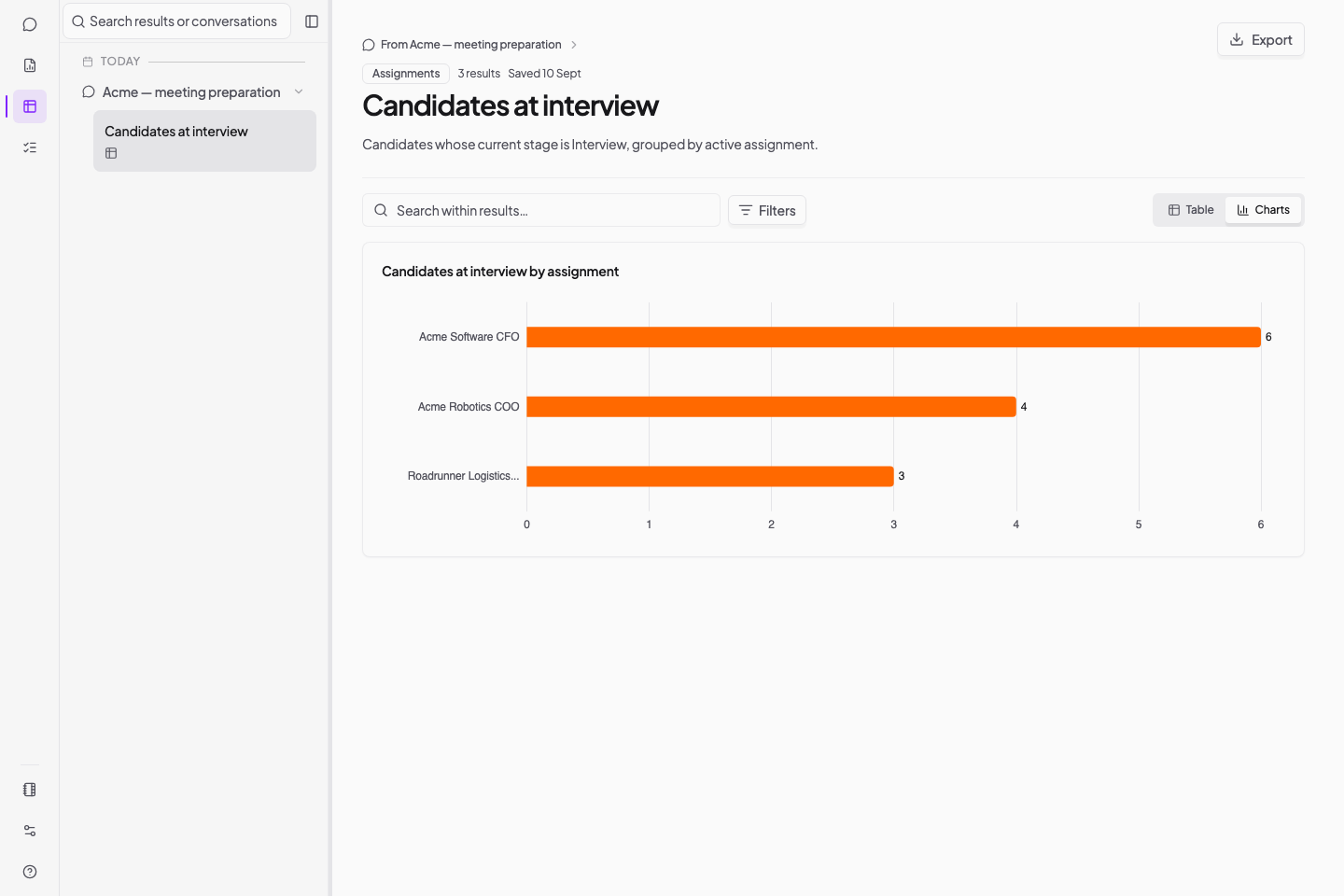
Count candidates whose current stage is Interview for each active assignment.
Show the totals in a table and a bar chart. List the candidates behind each count.
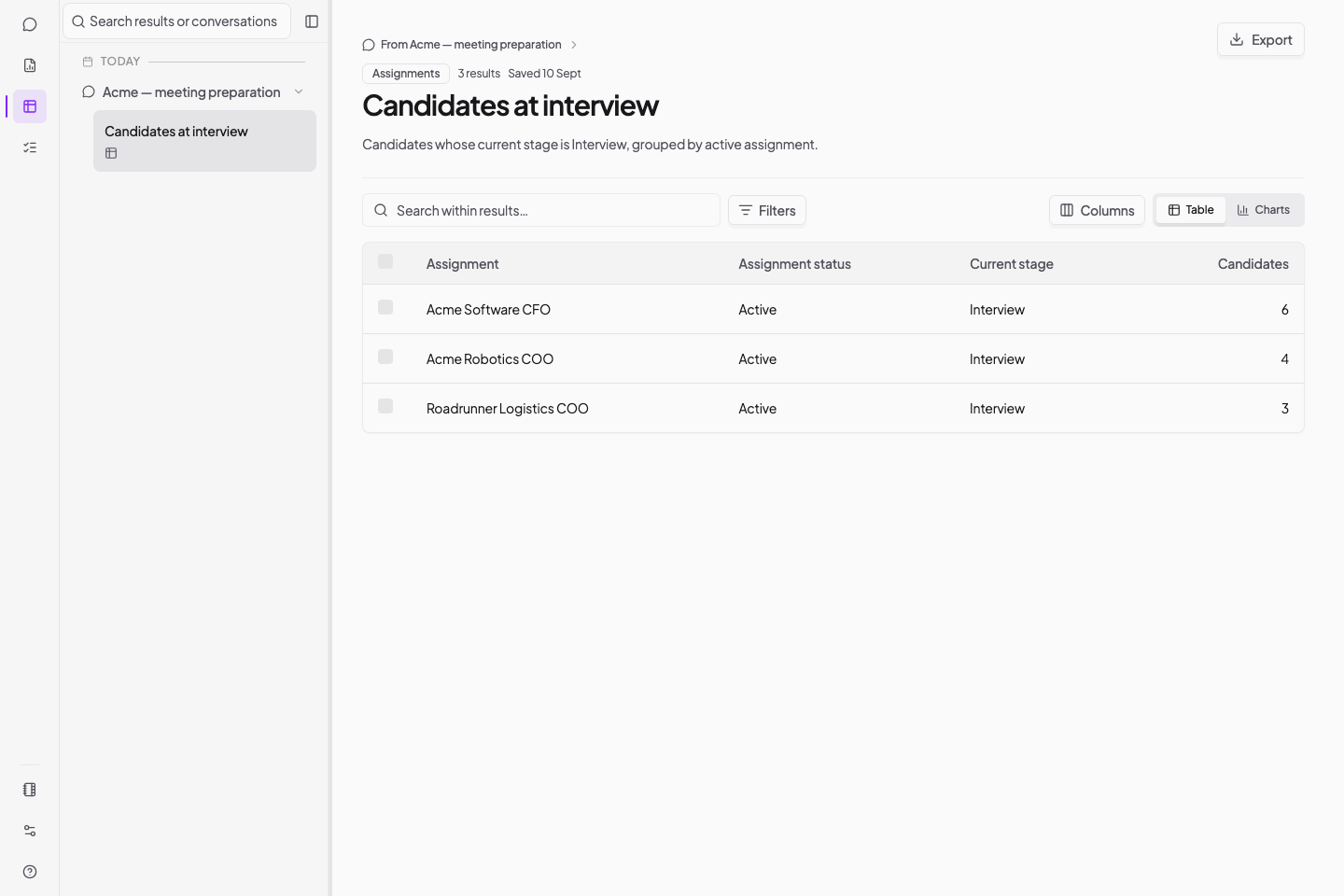
Open Results to search, filter or sort the table. Use Columns to show or hide fields, or export the result to Excel or CSV.
To add information that the table does not contain, ask Kaiya in the conversation:
Add the assignment lead and the number of candidates waiting for client feedback.
Flag candidates with no recorded stage.
See patterns in a chart
Ask Kaiya for a visualisation when you need to compare groups, see a trend or explain a breakdown.
| Your question | Example request |
|---|---|
| Which assignments have candidates at interview? | Show the number of candidates whose current stage is Interview for each active assignment as a bar chart. |
| How has new work changed this year? | Show the number of assignments created each month this year as a line chart. |
| Which sectors account for our active work? | Show our active assignments by sector in a pie chart. Keep missing sectors in a separate group. |
Name the records you want the chart to cover. “Chart this longlist” and “count all matching people in Invenias” ask different questions.
For a report across your firm, ask Kaiya to count the matching records in Invenias. If Kaiya reports an incomplete search, ask Kaiya to complete the count before you use the total.
Read a person profile
Use a profile to review one person's career, experience and fit for the brief.
Open Sam Ellis's Invenias record and show a profile. Include career history,
evidence against the Acme Software CFO brief and questions for the next interview.
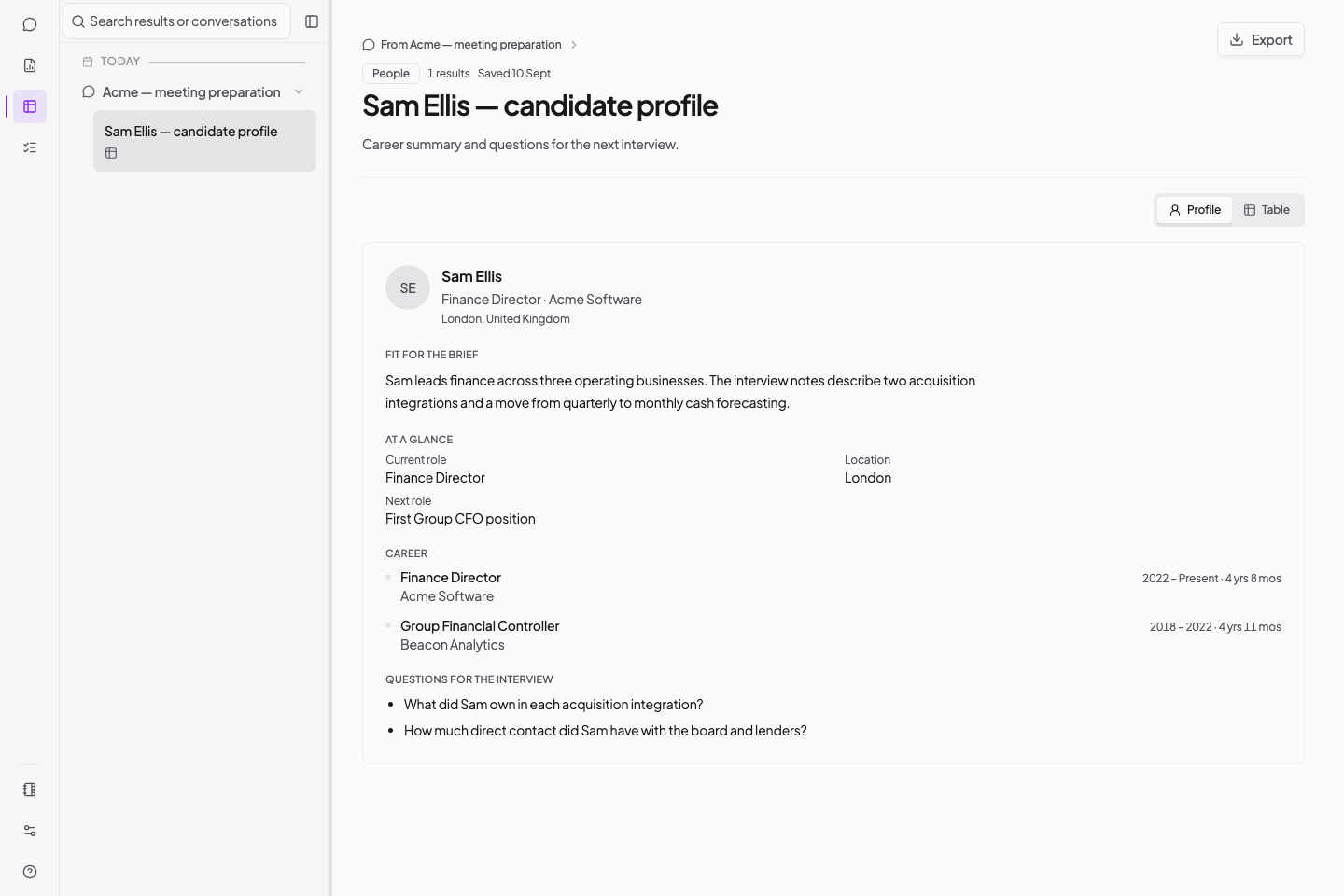
Kaiya can show up to three person profiles in one result. For a longer list, ask for a comparison table.
The profile appears in Results. To create a Word document for a client, see Create candidate reports and profiles.
Review your firm's historic expertise
Use completed assignment records to show where your firm has worked before. Set a date range and ask for both counts and assignment examples.
Review our completed CFO assignments from the past five years. Count them by
sector, ownership type and location. List the assignments behind each total and
flag records with a missing completion date, sector or ownership type.
Check the source records before you use the figures in a pitch or client document. A blank or old field can change the totals.
Create an internal report
Ask Kaiya to count assignments or candidates at each stage. State the records and date range that the report must cover.
Count our active assignments at each assignment stage. Break down the totals by
practice and location. List any assignment with a missing stage or review date.
For each active CFO assignment, count candidates at each current process stage.
Count each candidate once per assignment. Show the count for each assignment
and the total across assignments. Flag missing statuses and include the date
of the latest status update where available.
Tell Kaiya what your firm means by a stage if the meaning could change the report. Your team's interview and a client interview may need separate counts.
The same person can appear on more than one assignment. Specify whether you want to count unique people or candidate entries across assignments.
Ask Kaiya to include the date range, records counted and missing information with the figures. Kaiya should flag an incomplete search rather than present a partial total as complete.
From request to result
Kaiya searches Invenias and shows a preview in chat. Kaiya can check missing facts against online sources when they affect the answer.
- Open Results from Kaiya's menu.
- Select the saved result.
- Review the records, sources and missing information.
- Select the conversation name above the result title to return to chat.
- Tell Kaiya what to change.
On desktop, Open results in chat opens the full result. On mobile, it opens a preview. Use Results from the menu for search, filters, columns and export on either device.
Results loads the first 1,000 rows and shows the total count. To export all records, clear the search, filters and selected rows before you select Export.
Give feedback based on the result:
The divisional CFOs are closest to what we need. Exclude advisory-heavy profiles.
Prioritise people who led finance during a buy-and-build programme. Verify that
they worked at the company while it was PE-backed. Find more candidates with
the same operating experience. Keep the agreed requirements and off-limits list.
Keep refining the result in the same conversation. Start a new conversation when you move to a different assignment or objective.
Use Results with other searches
Kaiya can search leading professional networking sites and show the findings as tables, charts or person profiles in Results. You do not need Invenias for these searches or views.
Find finance leaders on leading professional networking sites who meet this brief.
Show the candidates in a table and compare their locations in a chart.
You can ask Kaiya to include your firm's Invenias records when you need both sources. See Work with results.
Check the evidence
Invenias records reflect the information your firm has stored. Missing, old or inconsistent records can affect the answer.
Ask Kaiya to identify the records that need correction. If you request updates, review and approve each plan before Kaiya makes changes. After the changes, ask Kaiya to repeat the analysis. Ask Kaiya to check missing career or company information against professional networking sites and other online sources.
Before you use the result:
- Check that Kaiya has interpreted the brief as you intended.
- Distinguish verified facts from Kaiya's inferences.
- Check company ownership during the candidate's employment, not only current ownership.
- Tell Kaiya about off-limits firms, client requirements and acceptable compromises.
- Ask Kaiya to flag blanks or conflicting records instead of filling gaps with assumptions.